
On this page
On this page
An Event is anything that isn't a game: a clinic, a social, a BBQ, a club meeting. Say when and where, and people tell you they're coming so you know the headcount.
01 What an Event is # link
An Event has no courts, rounds or scores. It's a date with a sign-up sheet: who's coming, who they're bringing, and, if you turn it on, a waitlist for when it's full.
- It can repeat: every week, every month, or on a few days and times (a Tuesday 9am and a Friday 11am clinic, say). Each date has its own list, so one week can be full and the next wide open.
- It can turn into play: the host taps Start a mixer on a date's manage page, and everyone going lands in the mixer's lobby. See Run it.
02 Post one # link
Tap Organize, then Host an event. Anyone signed in can post one. The form starts with the basics:
- Name and What's it about?: what it is and what to bring. Simple formatting like
**bold**and lists works; More tricks under the box shows the rest. - When and where: the start, how long, the place, and an optional note for that date.
- Room for people: how many Spots (or no limit), guests, Wait list when it's full, I'll approve each signup, the Level it suits and when Signups close.
- Questions: anything to ask as people sign up, like a meal choice or a T-shirt size.
- Advanced, tucked away at the bottom: repeats, Dates per player and the price. Most Events never need it.
Club and who can see it
In a club? Pick it under Hosting club, or No club to host on your own (it can't be changed later). Then choose who can see it. Whichever you pick, the share link always works.
- Public: anyone can find it.
- Club members only: just your club. Needs a club.
- Link only: only people you send the link to. For Events without a club.
Repeats
Open Advanced and pick under Does it repeat?:
- Just once: a single date.
- Every week: on one day and time, or several.
- Every month: on the same weekday each month, like the 2nd Tuesday or the last Friday.
- Custom: every 2 to 12 weeks or months, like every 3 weeks. Set the number under Every with − and +.
For Every week or Custom in weeks, add a row under On, one per day and time, with + Add a day or time, up to 14. Each row can have its own Length and Spots. Dates start the week of your Starting date.
Then say when it stops: For a number of weeks or On a day (a monthly one stops After a number of dates or On a day). A line under the choice shows what you'll get, like 24 dates, Nov 3 to Dec 25 · each one 1 hr.
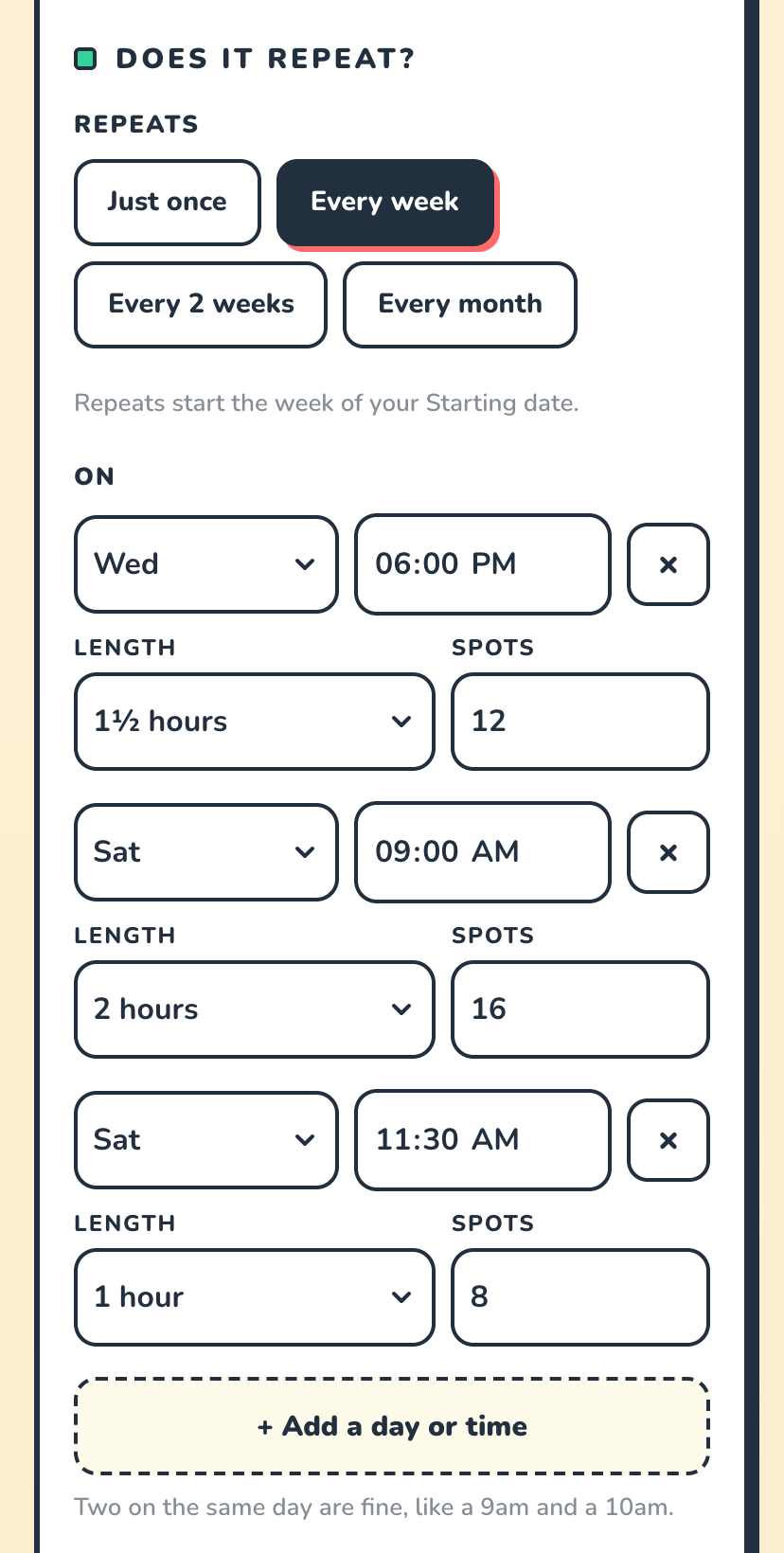
- One Event holds up to 160 dates or a year, whichever comes first. Need more later? Tap Add more weeks on the manage page (Add more dates on a monthly one).
- Events that repeat don't take guests: it's one person per spot.
Changing it later
- An Event made with days and times lists them on its edit page. Tap + Add to add one: it gets dates from next week on.
- Tap the × beside one to drop it. Its dates still ahead are called off and everyone signed up is told (and refunded, if they paid). You're asked first, and you can't drop the last one.
- To move one, edit one of its dates and pick This date and later ones at this time.
- Otherwise the repeat is set once the Event is made: a monthly Event, Custom in months, or an older Event can't change it. To repeat differently, start a new one with Run it again.
Run it again
Hosting the same thing again? Tap Run it again on your Event's manage page for a new Event form filled in from this one. Pick a new date, tweak anything, and create it; the old one isn't touched.
03 How signups work # link
- Count me in signs you up. Sign in first (making an account is quick).
- Join the waitlist shows instead when the date is full and the Event has a waitlist.
- Ask to join shows when the host says yes first.
- Changed plans? Leave frees your spot.
Guests
On a one-time Event, the host can turn on Guests under Room for people so people can bring a +1, +2 and so on. Guests per person starts at ∞, no limit; step it up to set a number from 1 to 10. A party takes a spot per person and is never split.
Full? Waitlist
Tick Wait list when it's full under Room for people and a full date lets people line up. As spots open, the first party in line that fits moves in and gets a ping. Leave it off and a full date just says Full.
- Each date has its own line, shown under Who's coming, numbered in the order it moves up.
- New Events start with it off. Turn it off later and nobody is dropped: the line keeps moving, but nobody new can join.
Hosts can give an opened spot to someone further down the line: on the date's Manage page, open the Waitlist tab and tap Give them the spot. Whoever moved up most recently goes back to the front of the line with a Back in line ping, and your pick gets You're in!. It works until the date starts, and never on a spot that's been paid for.
Approvals and levels
Turn on I'll approve each signup and people ask to join instead: you tap Approve or Decline, and they get a ping either way. If the date filled up meanwhile, Approve puts them in the line, or asks you to Approve anyway when there's no waitlist.
Running a clinic for a certain level? Set a Level, like 3.0 to 3.5, or 3.5 and up, and it tags along on the end of the Event's name: Saturday clinic (3.0–3.5). Players in the range sign up as usual; anyone outside it, or with no level yet, can still Ask to join.
Questions
Add up to 10 Questions, like Chicken or veggie?. Answers can be A few words, Pick one or Yes or no; tick They have to answer to make one required. A pick-one option can have a limit, like only three desserts, and it greys out once it's gone. You see the answers on the manage page.
Every date
On a free Event that repeats, tick Count me in for every date as you sign up. You're put on every date still open, and on any date the host adds later.
- Each date works like signing up for it: you might be in, on the waitlist (when the date is full and the Event has one), or waiting on the host. A date that's full with no waitlist is skipped, and you're told.
- Leave drops one date. Leave every date drops the lot, and new dates stop adding you.
- Not on paid Events, or ones with a Dates per player limit: there you pick dates one by one.
Dates per player
A few regulars can fill every date and squeeze everyone else out. On an Event that repeats, set Dates per player under Advanced (1 to 100) to spread the spots around, and pick how it counts:
- Across the whole series (the default): every date you sign up for counts, played or not.
- At a time: only dates still ahead count, so you can book another once one's been played.
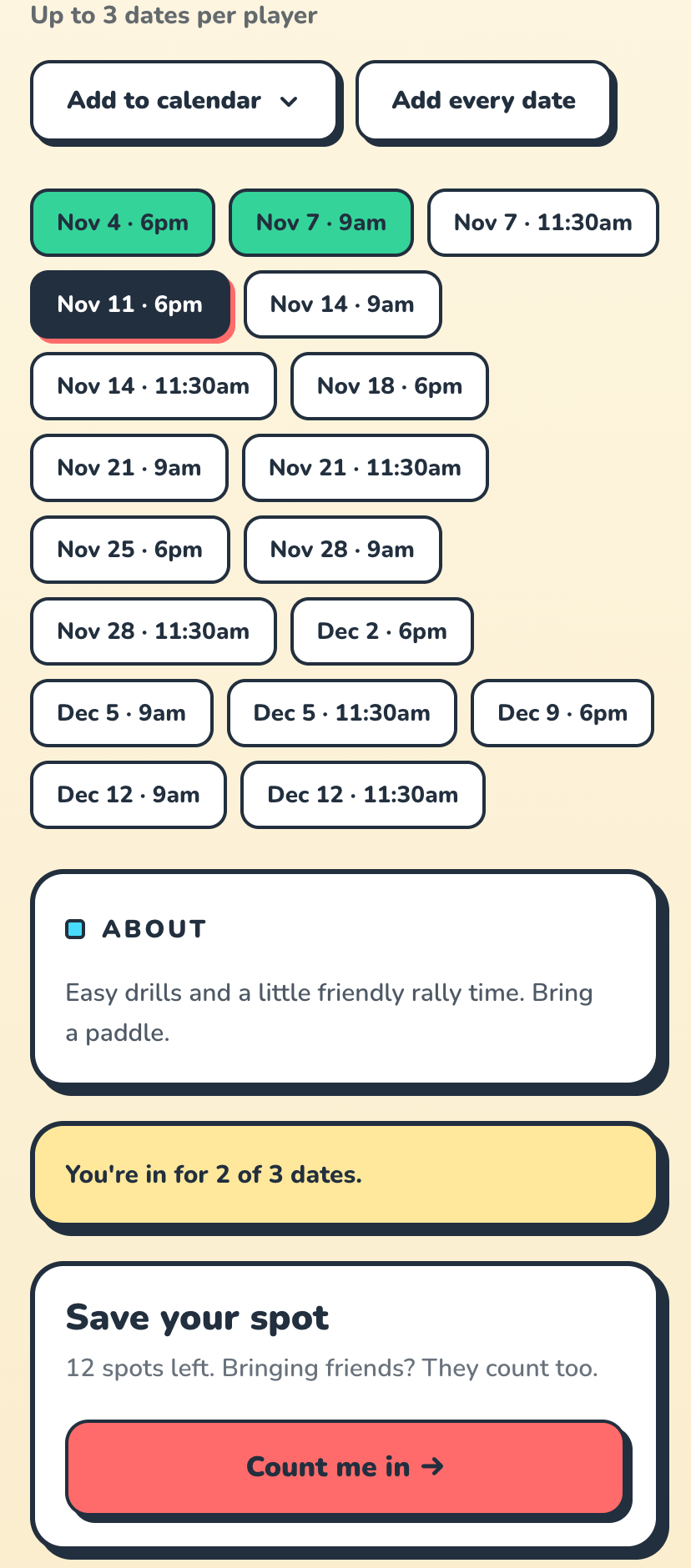
- Players see Up to 3 dates per player, where they stand (You're in for 2 of 3 dates), and At your limit on dates they can't take. Leave a date to free one up.
- Out of the box, waiting never counts: a waitlist spot, or asking to join a date that's full, uses nothing up, and a spot you get off the waitlist is a bonus, even after it's played. When a spot opens, players under their limit move up first, then the rest, in the order they joined.
- Want waiting to count too? Set Wait lists to Count toward it instead of A bonus. The rule then reads Up to 3 dates per player, wait lists included.
- Hosts, co-hosts and club staff aren't limited. Lowering the limit never takes anyone off a date.
Closing time and reminders
- Signups close when the Event starts, or sooner if the host sets Signups close.
- About a day before each date, everyone going gets a reminder email with the time, the place and the host's note. Turn it off with Match reminders on your Account page.
04 Paid events # link
A club's owners and admins can charge for an Event once the club has Stripe connected and paid events are switched on. Set the Price under Advanced. It's per person, guests included: bring two friends to a $10 Event and you pay $30, in one checkout. The money goes to the club, less dinked.in's fee.
Paying for a spot
- Tap Hold my spot and pay. Your spot is held while you pay. Backed out? Tap Try paying again or Give up my spot before the hold runs out.
- Refunds: leave before the Refunds until cutoff (24 hours before the start, unless the host changes it) and you get it all back, automatically. After that, no refund. If the host takes you off or calls the date off, you're refunded in full.
- Waitlist offers: when a spot opens on a full paid Event, the next in line gets an offer to pay, good for as long as Waitlist offers last (24 hours unless the host changes it). Tap Claim it, or it moves to the next party.
For hosts
- Member price: charge club members less, or put 0 and they come free. Guests they bring pay the regular price.
- Let people choose "I'll pay at the door": people sign up without paying and show as owing. On the manage page, Mark paid (cash) records cash, Comp waives the fee, and Undo takes either back.
- The Money panel shows what's collected, dinked.in's fee, what your club nets and what's still owed. A stuck refund shows as Refund pending: we keep retrying, or tap Retry refund.
- The price locks once anyone has paid, or been marked paid or comped. The host and the club's owners and admins sign up free.
05 Run it # link
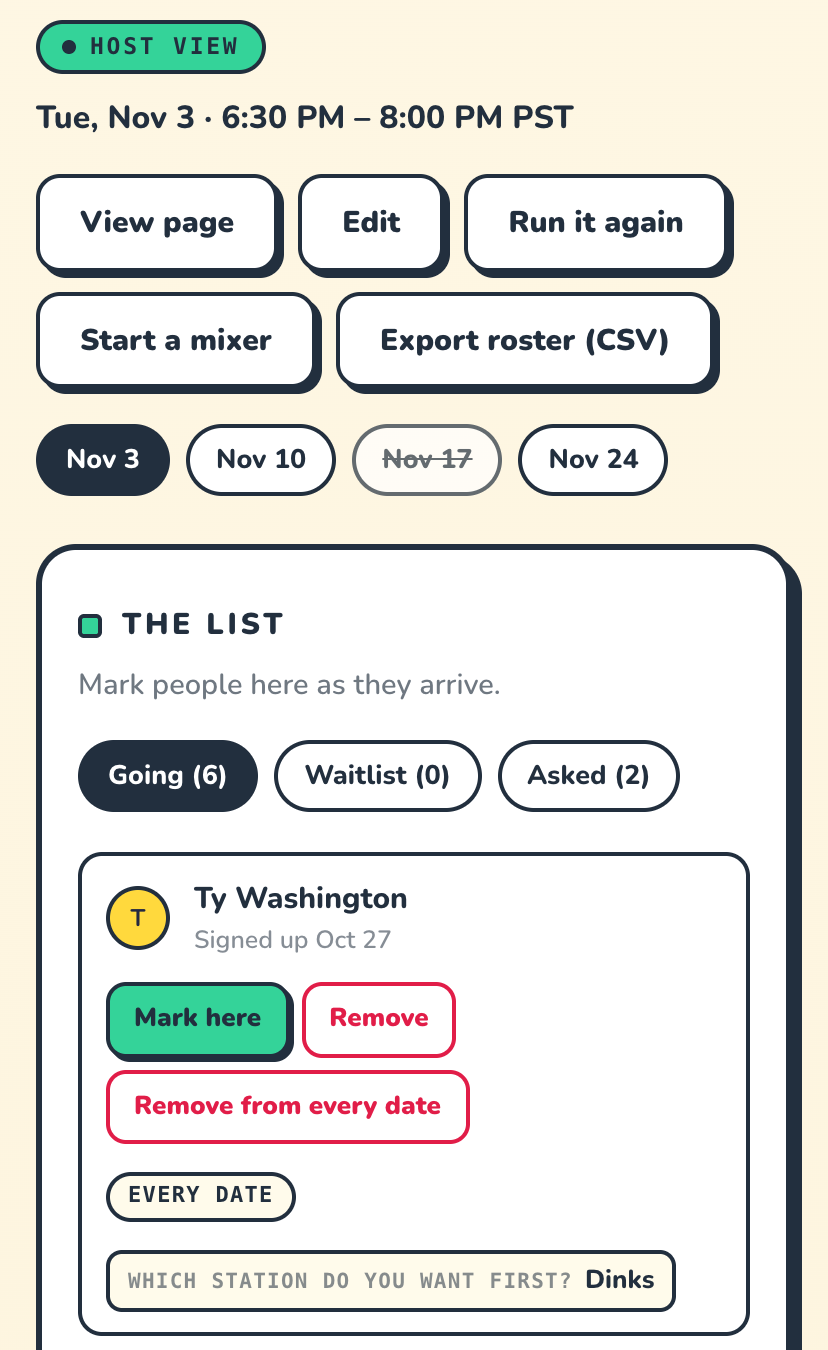
Open your Event and tap Manage. That's the host view for one date.
- Mark here ticks people off as they arrive.
- Add someone: find them on dinked.in, or use Add by name to bring a friend with no account. Over the limit? Confirm with Add anyway.
- Remove takes someone off the date. They can't sign themselves back up, but you can add them again. People in for every date also have Remove from every date.
- Message everyone: send a note to Everyone going or Going and waitlisted. They get a ping, and it shows under Updates from the host.
- Co-hosts: Make co-host lets someone run it with you.
- Edit: change the time, place or spots for This date only or This date and every one after (on an Event with days and times, This date and later ones at this time).
- Start a mixer turns the date into a game: the mixer form comes filled in, and everyone going, guests too, lands in its lobby. After that the button reads Open the mixer.
- Call it off cancels this date or later ones and pings everyone signed up. With days and times, pick Just this date, Later ones at this time or Every date after this.
- Delete this event removes the whole Event for everyone, with a ping and card refunds. Only the host and the club's owners and admins can.
06 Share the link # link
07 Add it to your calendar # link
- On an Event's page, tap Add to calendar, then Google Calendar or Other calendars (a file Apple, Outlook and most other apps can open).
- A repeating Event also has Add every date: one entry that repeats on its own and skips called-off dates.
- Add one date or every date, not both, or it shows up twice. If a date moves, check the Event's page: not every calendar app picks up the change.
08 Export the list # link
On the manage page, tap Export roster (CSV) to get a spreadsheet of that date: names, status, guests, when they signed up, their answers, how they paid and who showed up. It opens in Excel, Numbers or Google Sheets.
09 Contact Us # link
Still stuck?
Tell us what tripped you up and we'll help you sort it.