 dinked.in
How to Use dinked.in
A step-by-step tutorial for running pickup games and mixers — joining, scoring, rotations, adding players, and sharing.
🏀 Getting Started
Sign up
Create your account in seconds using any of three options:
- Google — tap “Continue with Google.”
- Facebook — tap “Continue with Facebook” and authorize the app.
- Email & password — enter your email, choose a password (8+ characters), and verify your email.
Log in with the same method you signed up with. Forgot your password? Tap “Forgot password?” on the login page for a reset link.
Find & join games — the Play hub
Tap Play to see everything you can join. The hub lists your upcoming and past events and offers a list or calendar view. From here you start a new pickup game or mixer, or join one with a code or link.

Install on your phone
dinked.in works as an app on your phone — no app store needed. Once installed it launches full-screen like a native app.
iPhone (Safari)
Only Safari can do this on iPhone. The circles show where to tap.
iOS 26 and newer
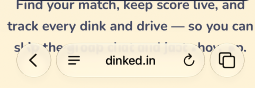
Tap ≡ at the left end of Safari's address bar.
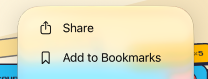
Tap Share.
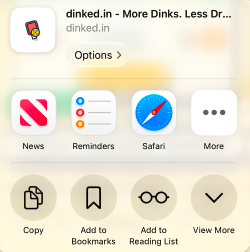
Tap View More at the end of the bottom row.
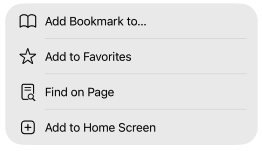
Tap Add to Home Screen.
Leave Open as Web App on and tap Add. Done!
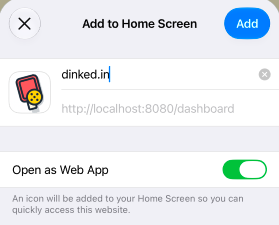
iOS 18 and older
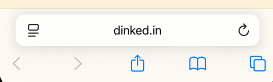
Tap Share in the middle of Safari's bottom bar.
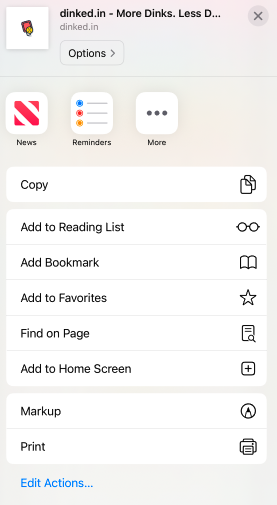
Scroll down if you need to, then tap Add to Home Screen.
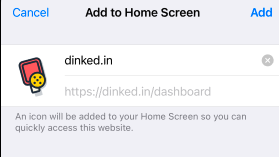
Tap Add in the top-right corner. Done!
Android (Chrome)
- Open dinked.in in Chrome.
- Tap the three-dot menu (⋮) in the top-right.
- Tap “Add to Home Screen” or “Install App,” then “Install.”
🏓 Pickup Games
A pickup game is a single match — quick to set up, score, and share. Perfect for one game of doubles or singles.
Create a pickup game
From Play, tap New Pickup Game and choose:
- Format — a scoring preset (Standard 11, Extended 15, Quick 15, Rally 21) or Custom points-to-win and win-by.
- Location — type an address or tap “use my location.”
- Who can join — Public (discoverable) or Invite-only.
- Self-approve scores — let the submitter confirm their own score instead of waiting for the other team.
- Add players now (optional) — search accounts or add name-only guests right away.

Get players in
In the lobby you’ll see a join code plus copy-link and QR buttons. Players can:
- Enter the join code from Play → Join.
- Tap your shared link or scan the QR code.
- Open a Public game from the Play hub and tap Join.
As the host you can also add players directly — including guests with no account. See “Adding players & guests” below.

Play & score
- When everyone’s in, the host taps Start Game.
- Any player adjusts the score with the + / − buttons (or taps the number to type it).
- Tap Submit Score when the game ends.
- The other team taps Approve to finalize, or Dispute to reopen scoring. (With self-approve on, the submitter can approve too.)
Rematch, results & spectate
- Play Again spins up a new game with the same teams and settings — chain as many as you like, then Done Playing ends the series.
- Share the spectate link so anyone can watch the live score — no account needed.
Good to know: the host can cancel a game any time before it’s completed; players can leave while it’s still in the lobby, but the creator can’t leave their own game.
🎯 Mixers — Set Up
A mixer runs many games across multiple courts and rounds, rotating partners and/or courts and tracking standings. From Play, tap New Mixer, give it a name and location, then pick a format (see Rotations below). The rest of setup is five cards:
① Game Mode
Choose Traditional or Rally scoring, then Points (set game-to and win-by) or Timed (set a duration).
② Courts
Set your number of courts and the session length — Total rounds (0 = play until you stop) or, for round-robin schedules, Games per player (shown as Games per team in the fixed-partner round robin). Court Naming · Advanced is a collapsible panel: shift court numbering with an offset (e.g., offset 3 → “Court 4…”) or give individual courts custom names.

③ Rotation & Movement
Pick the format from the Rotating or Fixed-partner families (each tile explains itself). Then fine-tune: Games per round, Allow player advance (any player can start the next round, not just the host), Allow uneven number of players (byes rotate fairly so nobody sits twice in a row), and Seed by skill level (tier-sort by skill before round 1).

④ Results & Scoring
Choose the standings format (Win/Loss, Win %, Total Points, or Court-Weighted Points), whether to require score approval (and optionally allow self-approval).

⑤ Access & Sharing
Who can join? — Public, Members (club members only), or Invite. If you’re a club admin, turn on Hosted by club to post a public game on behalf of your club (results submit under the club and club admins can manage it). Optionally add up to five co-hosts — people who can run the mixer with you.

🏃 Mixers — Run It
The lobby
Share the join code, link, or QR to bring players in. As host you can add players and guests directly. For fixed-partner formats you’ll pair players (and for Pool Play, assign pairs to pools). For seeded or fixed formats, tap Preview Round 1 to see — and tweak — the opening court assignments, then Start.

The dashboard: Courts, Standings, Rounds
- Courts — the live board. Tap a court to score the game on it; scores sync in real time.
- Standings — the leaderboard, ranked by your chosen format, updating as games finish.
- Rounds — the schedule and past results (for round-robin formats).

Scoring & advancing rounds
Score each court with the + / − buttons and submit. If approval is required, the other team approves or disputes. When the round’s games are in, advance to the next round — the app re-pairs and re-assigns courts according to your format, rotating byes fairly so the same people don’t always sit out. Standings update live, and you can finish the mixer at any time to lock final results.

🔄 Rotations Explained
Your format decides who you partner with and how you move between courts. There are two families.
Rotating Partners (you get new partners)
- Bump — Easy, 8–16 players. One game per court each round; after it, one player stays and one rotates — winners bump up a court, losers bump down. Approachable and social.
- Popcorn — Chaos, 8–28. No ladder, no schedule: everyone reshuffles to new courts and partners every game. Ranked by win percentage. Best when skill levels are similar.
- Round Robin — Fairest, 4–28. A full schedule pairs you with and against everyone at least once. Matchups follow the schedule, not results, for the most balanced standings.
- Up & Down River — Seeded, 8–24. Three-game cycles: you partner with everyone on your court, then courts re-sort by total points. Seeded by skill level.
- Gauntlet — Skill-matched, 8–28. Courts re-sort by points after every game, and higher courts award more points per win. Seeded by skill level.
- Claim the Throne — Large groups, 16–28. Winning pairs travel up a court together, losers drop together, then re-team. Higher courts are worth more. Seeded by skill level.
Fixed Partners (you keep your partner)
- Tandem Ladder — Pairs, 8–24. Sign up as a pair and climb or slide the court ladder together by result.
- Pool Play — Pairs in pools, 16–28. Pairs split into pools; within each pool every pair plays every other once, with per-pool standings plus a combined leaderboard.
- Shuffle — Pairs, any length. Keep your partner and face a randomly chosen opposing pair each round, avoiding repeats where possible.
Seeded formats (Up & Down River, Gauntlet, Claim the Throne) sort players onto courts by skill level at the start, so set your skill level in your profile before joining.
👥 Adding Players & Guests (Organizers)
You don’t need everyone to enter a join code. As the host of a pickup game or mixer you can add players yourself.
The Add Player panel
Tap the add-player icon next to the Players heading. You can:
- Search an existing account by name and tap to add them.
- Add a guest — just a name, no account. Great for low-stakes nights so you can track everyone without making people sign up.

Linking a guest to a real account
A guest can become a real player later, and their stats carry over. On a guest’s tile, tap the link badge to open the same panel in link mode and either:
- Search and link the guest directly to an existing account, or
- Generate a claim link — a single-use, expiring link you send the guest so they can claim the spot themselves (you can revoke it any time).
Even after a mixer starts, the link badge stays next to guests in the Standings tab for 24 hours, so you can attach a real account once someone confirms who they are.
Good to know
- You can remove (kick) a player from the lobby; added players can also remove themselves.
🏟 Clubs, Hosting & Sharing
Clubs & roles
Clubs have owners, admins, and members. Owners and admins can create and manage the club’s events; members can join Members-only events.
Club-hosted games
A club admin can run a game on the club’s behalf two ways: set visibility to Members (only club members can join), or keep it Public and turn on Hosted by club so an open event still shows on the club page and can be managed by any club admin.
Co-hosts
Add up to five co-hosts when creating a mixer to let trusted people start rounds, score, and manage players on your behalf — handy if you’re playing too.
Spectate & share
Every game and mixer has a public spectate link (and QR) for live viewing — great projected courtside or shared with people who aren’t playing. No account is required to watch.
